Build your equipment list.
Your equipment library is the source of truth for what's aboard. Add an item once, with its real specs, and you can attach it to any tender as 'Equipment in scope', so bidders always know exactly which machine the job concerns.
Add a piece of equipment to your library so it's ready to attach to any tender as 'Equipment in scope'.
An approved vessel organization.
About 5 minutes per item.
Reflects app v1.5.9
Open Equipment on your dashboard
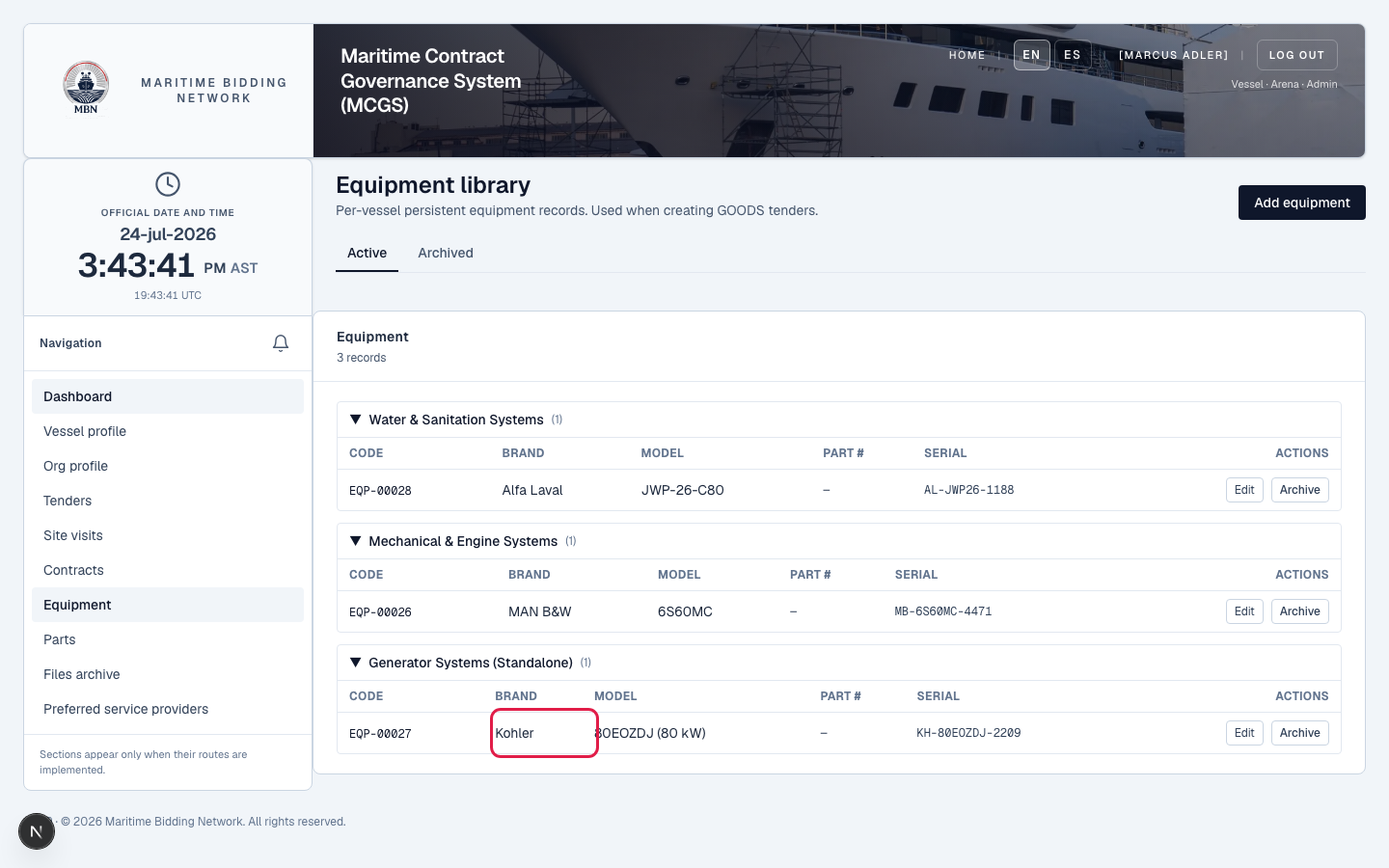
From your vessel dashboard, open the Equipment library and start a new item. This is your organization's own record: build it once and reuse it across every tender.
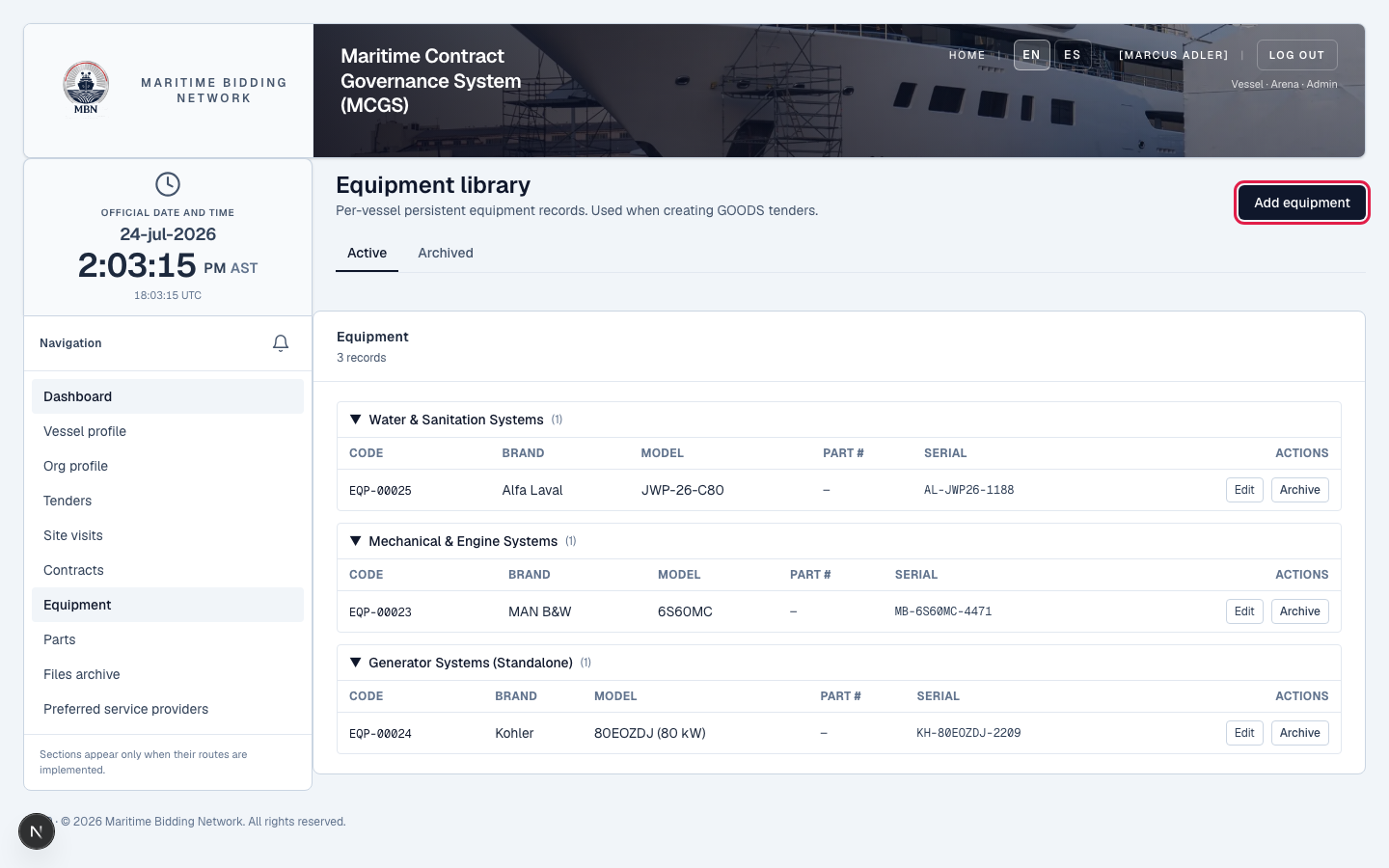
Identify the equipment
Enter what it is: name, type or category, maker, model, and serial number. This is what a service provider reads to know exactly which unit the work concerns, so be precise.
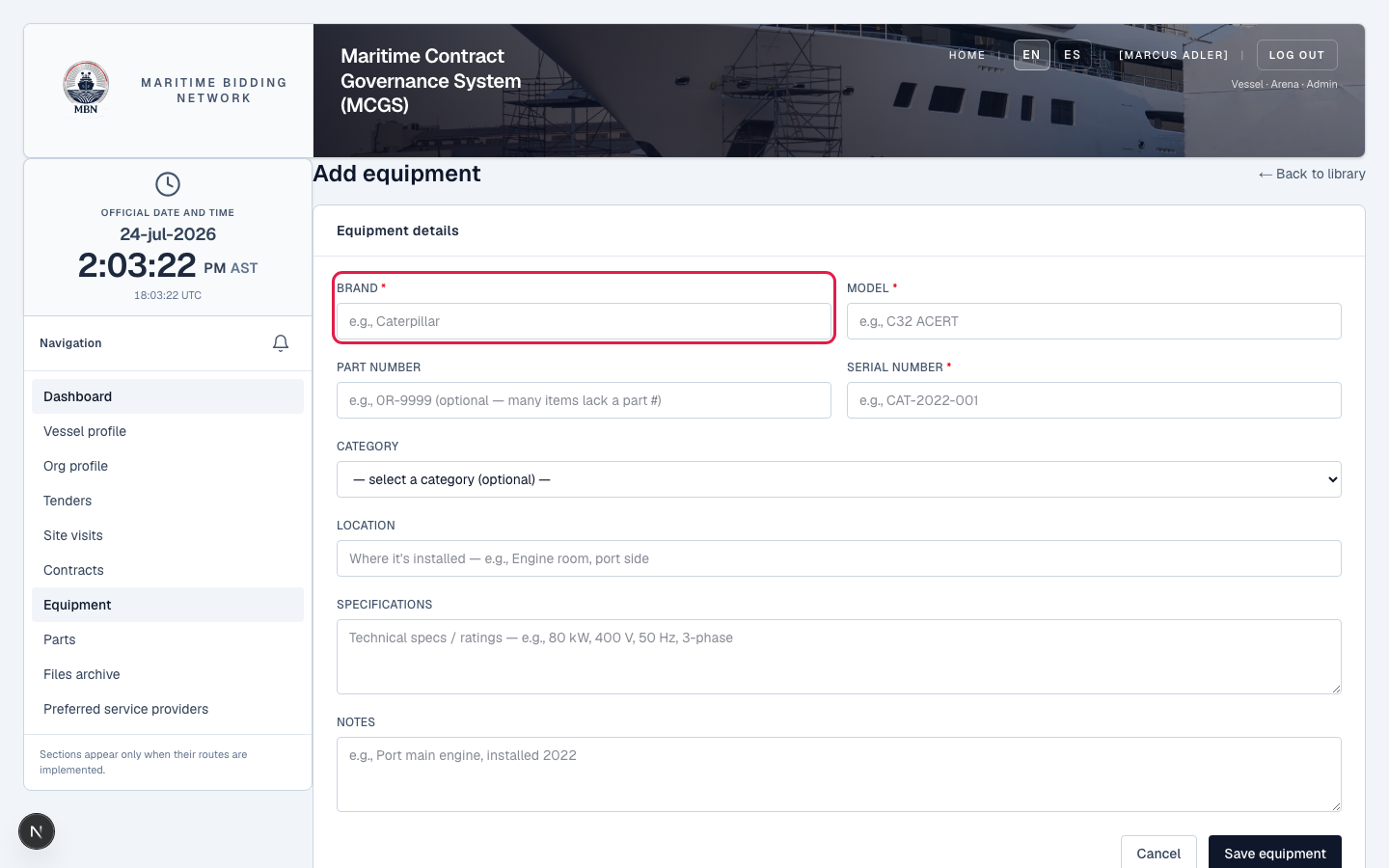
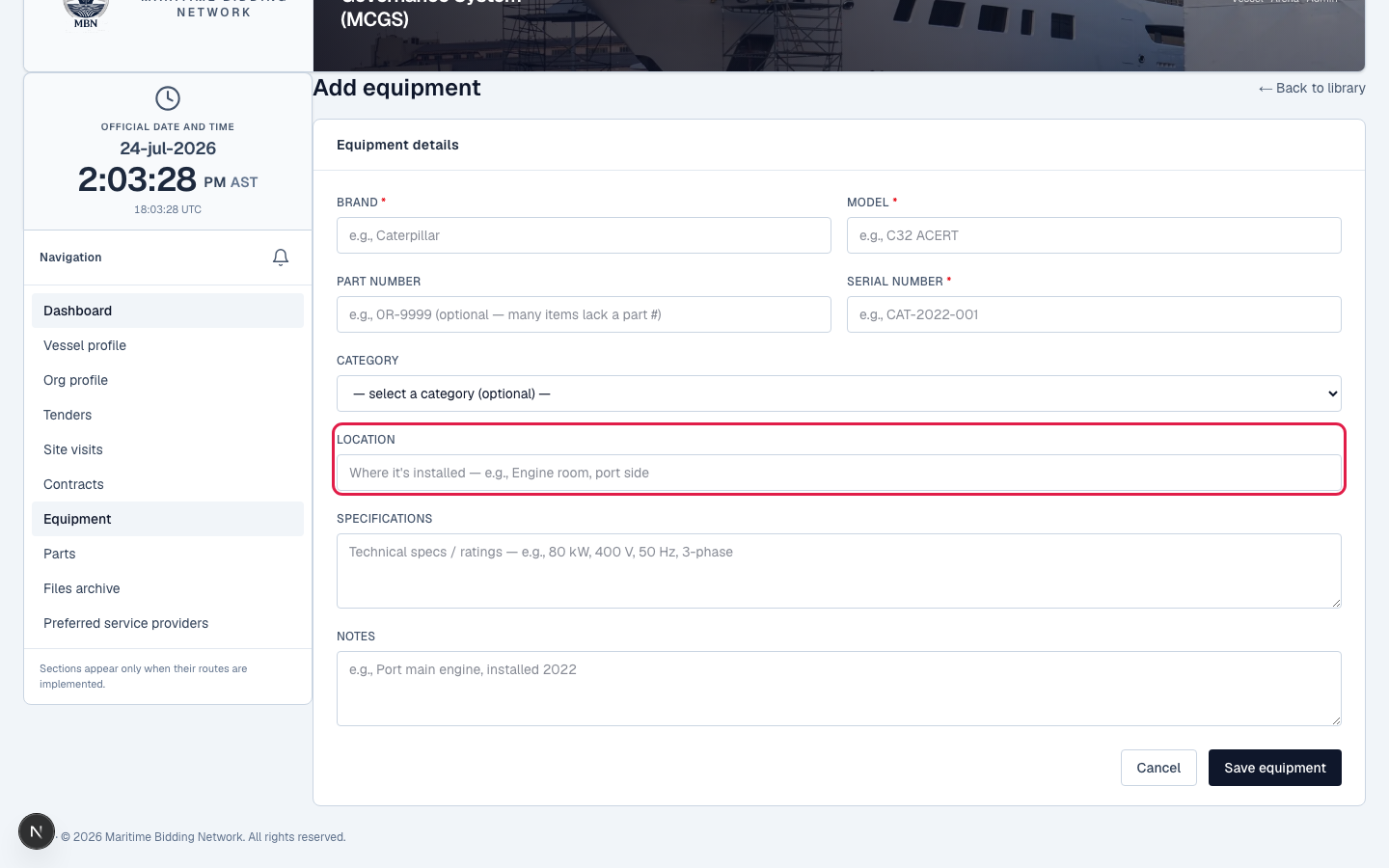
Add specifications and location
Record the technical specifications that matter and where the equipment sits aboard: its system and location. These details tell a bidder exactly which unit the work concerns, so quotes come back against the real machine, not a guess.
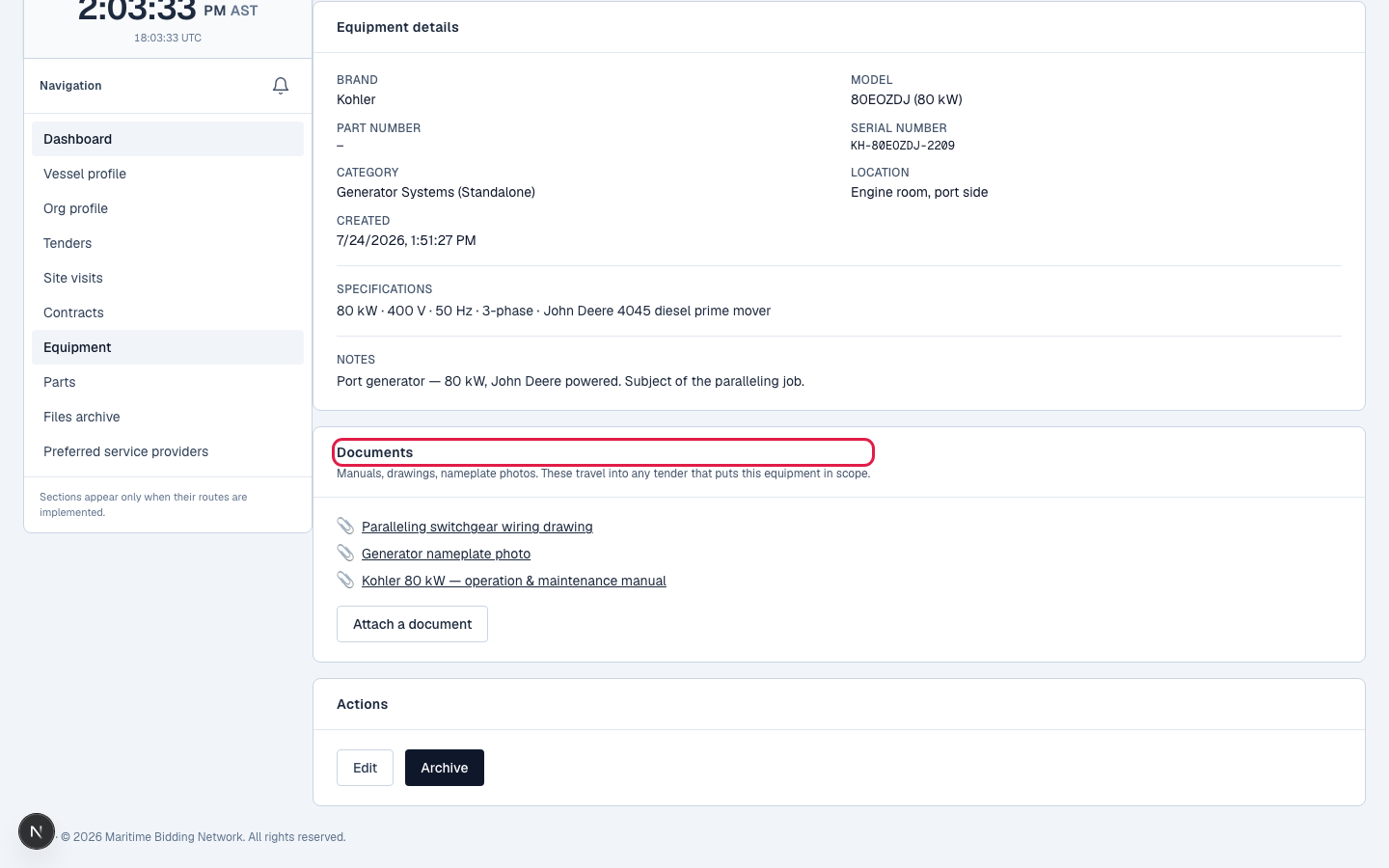
Attach documents
In the equipment's Documents section, use Attach a document to add manuals, drawings, or nameplate photos. When this item goes into a tender as Equipment in scope, they travel with it, so every bidder works from the same reference material.
Save it to your library
Save the item. It now lives in your equipment library, ready to reuse, you define it once, not every time you raise a tender.
Reference it on a tender
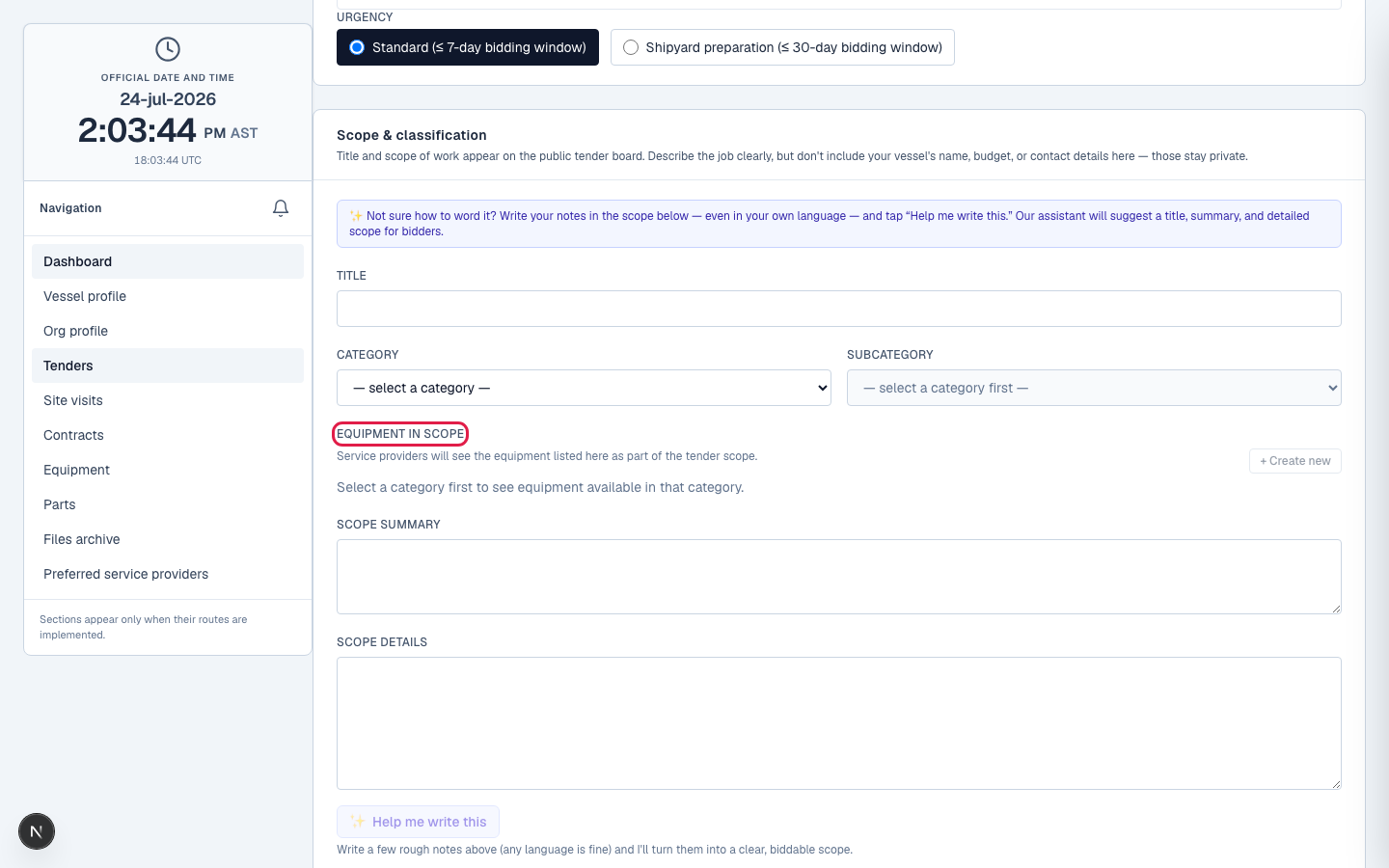
When you create a tender, add this equipment as 'Equipment in scope': bidders see which machine the job touches, on any tender type. It's context, not a priced line: parts are what become line items (see the Parts lesson).
What happens next
Repeat for the equipment that matters, then build your Parts library too. Keep the difference straight: equipment tells bidders what they're working on; parts are what you're ordering, and parts are what become the priced line items on a goods tender. Next: build your parts list.
Related lessons
Start your library
Log in and open Equipment. New to MBN? Request free access, and once an MBN officer approves it, the dashboard is live for you immediately.